Support
Install
- Install the extension from the Chrome Web Store.
Salesforce Org Configuration
- Important: Navigate to a supported Salesforce Lightning record page in Chrome while signed in to Salesforce, for example an Account record.
-
Click the extensions icon in the Chrome toolbar, then select Salesforce Record Indicator to open the popup and view the available fields for the current record.
Why do I need to do this? This allows the extension to auto-detect and populate your Salesforce org domain.
-
Open Options from the extension popup.
- Add the Salesforce org in Manage orgs, or select it if it is already saved.
Indicator Configuration
- Select the object you want to configure from the dropdown.
- Choose the display settings in the Display section.
- Select New Rule to create your first indicator rule.
- Build the indicator rule using available fields.
- Choose the indicator colour as part of the rule.
- Return to the record page and confirm the indicator appears as expected.
Important note
For the extension to work correctly, it must be allowed to access the Salesforce website in Chrome site access settings. It only works with the records, fields, and data that the current user already has permission to access in Salesforce. If a field is not accessible to that user, the extension will not treat it as available.
Salesforce Record Indicator only uses the Salesforce records, fields, and metadata available through your
existing Salesforce session.
It does not transmit Salesforce data to external servers or third parties.
FAQs
Which Salesforce objects are supported?
The current standard-object scope is Account, Contact, Lead, Opportunity, and Case.
Does the extension see more Salesforce data than I can already access?
No. Record fields, data visibility, and product behavior depend on the individual user's existing Salesforce session, permissions, and field access.
What permissions do I need?
1.
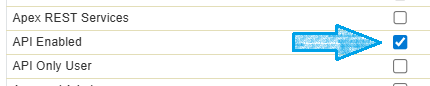
API Enabled permission. This is usually provided through Salesforce Profiles or Permission Sets.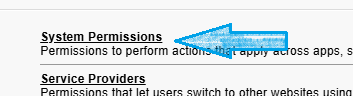
For example, if you want an indicator to work on the Account record, you need access to the Account record and the fields referenced in the rule.
If you cannot see a field in Salesforce, Record Indicator will not be able to use it either.
If you are not sure whether your permissions are set correctly, create a simple test indicator first to confirm it works.
What is the popup field view for?
It helps users see the fields available on the current record, search by label or API name, and troubleshoot why a rule is or is not matching.
Where are my rules and preferences stored?
Rules and preferences are stored in Chrome extension storage.
Is my Salesforce data shared externally?
No. The extension does not send or share your Salesforce data externally. Salesforce record data is accessed through your existing Salesforce session, and your rules and preferences are stored in Chrome extension storage.